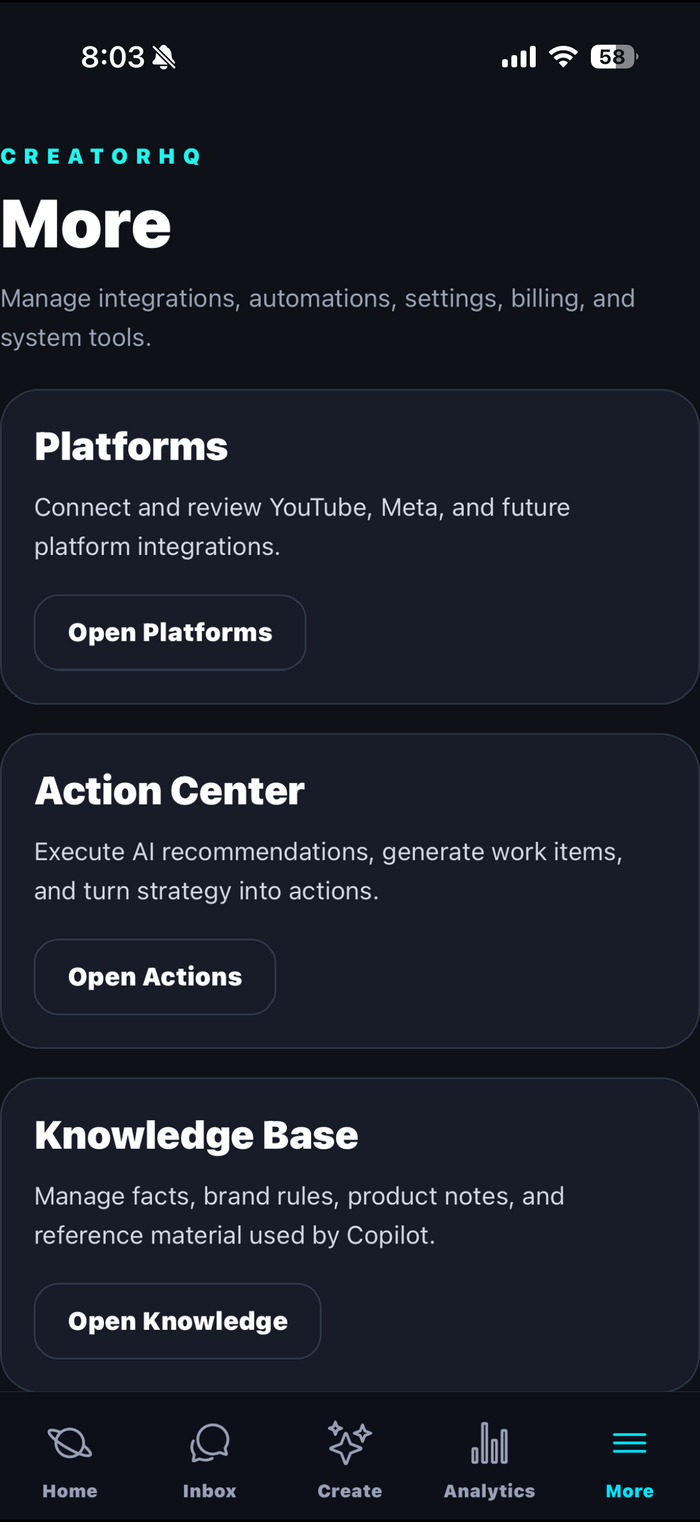
Where everything lives once you're connected
CreatorHQ is organized into five tabs. Here's what each one is for and how to use it — every screenshot is CreatorHQ itself on real connected accounts.
Start here: your daily mission, already built
Open CreatorHQ and Home tells you exactly what today needs. No digging through three platforms to figure out where to start.
- Check your Creator Health score at the top — one number for how your whole presence is doing.
- Read Today's Mission — your priority task for the day, like "Reply to 19 priority comments today."
- Scan the Content Pipeline — ideas, drafts, scheduled, and published counts at a glance.
- Work the Priority Comments feed — the comments that most need a reply, pulled from every connected platform, or jump into the AI Copilot right from the top of the screen.
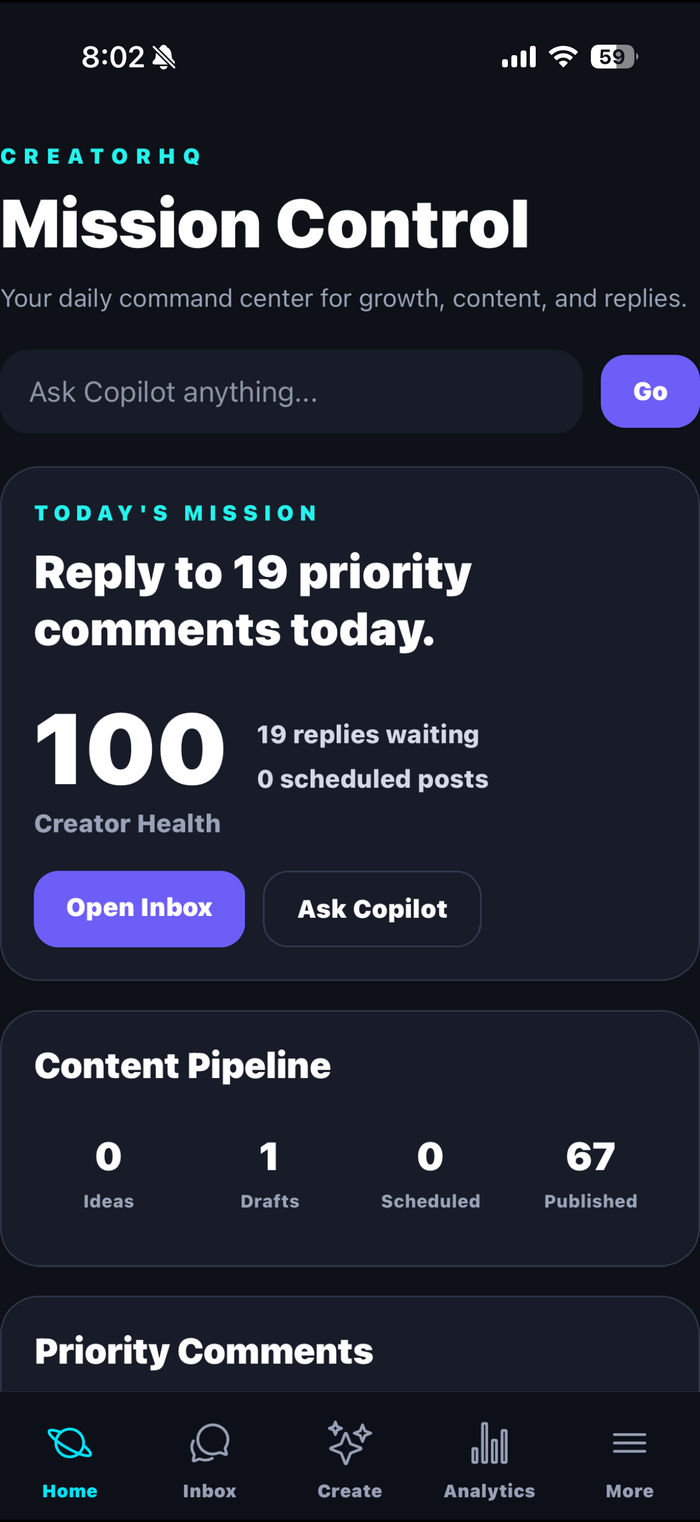
Clear every comment, mention, and message in one pass
Everything your audience sends you across your connected platforms lands in one feed. Here's the fastest way to work it.
- Start with the actionable count — the Inbox tells you how many items genuinely need you, not just how many exist.
- Filter by intent — cut the feed to Opportunity, Risk, Question, or Reply and handle one kind of message at a time.
- Triage by priority — Waiting, Critical, High, and Medium counts show where the fires are, so start at Critical.
- Search when you need it — find any comment or message across every platform from one search bar, and watch your Inbox Health score climb as you stay on top of it.
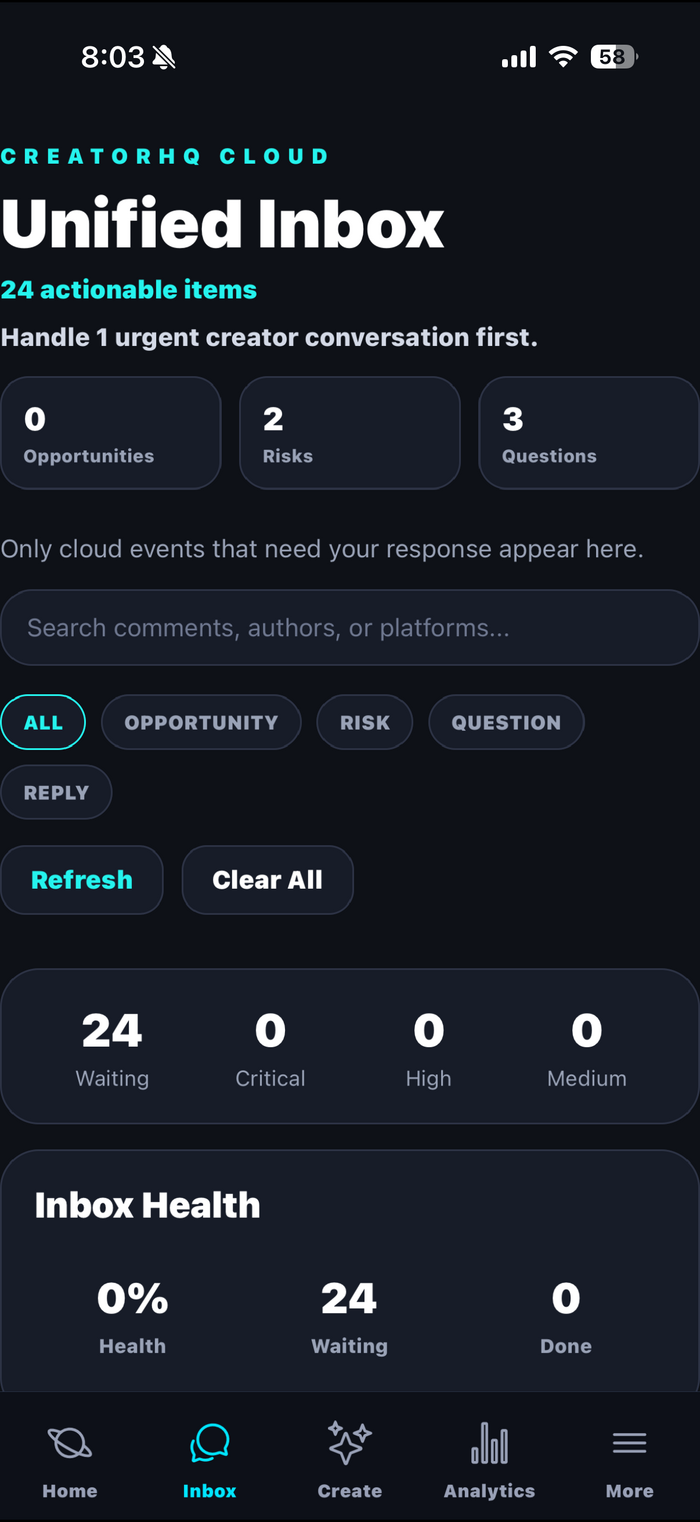
Put the AI Copilot to work — on your terms
Create is where CreatorHQ's AI lives. It's wired into your own accounts, audience, and brand knowledge — not a generic chatbot.
- Read your Creator Copilot brief — an AI operating brief with recommended actions based on what's happening across your platforms right now.
- Chat with Copilot — it has access to your creator memory, knowledge base, inbox, publish queue, analytics, and projects, so you can ask it real questions about your channel.
- Fill in your Knowledge Base early — add your brand rules, FAQs, sponsor notes, and product facts once, and every AI draft uses them from then on. This is the single highest-leverage five minutes in CreatorHQ.
- Review everything before it goes out — AI drafts are suggestions. Nothing is posted or sent without your review and your tap.
Check the numbers — and what to do about them
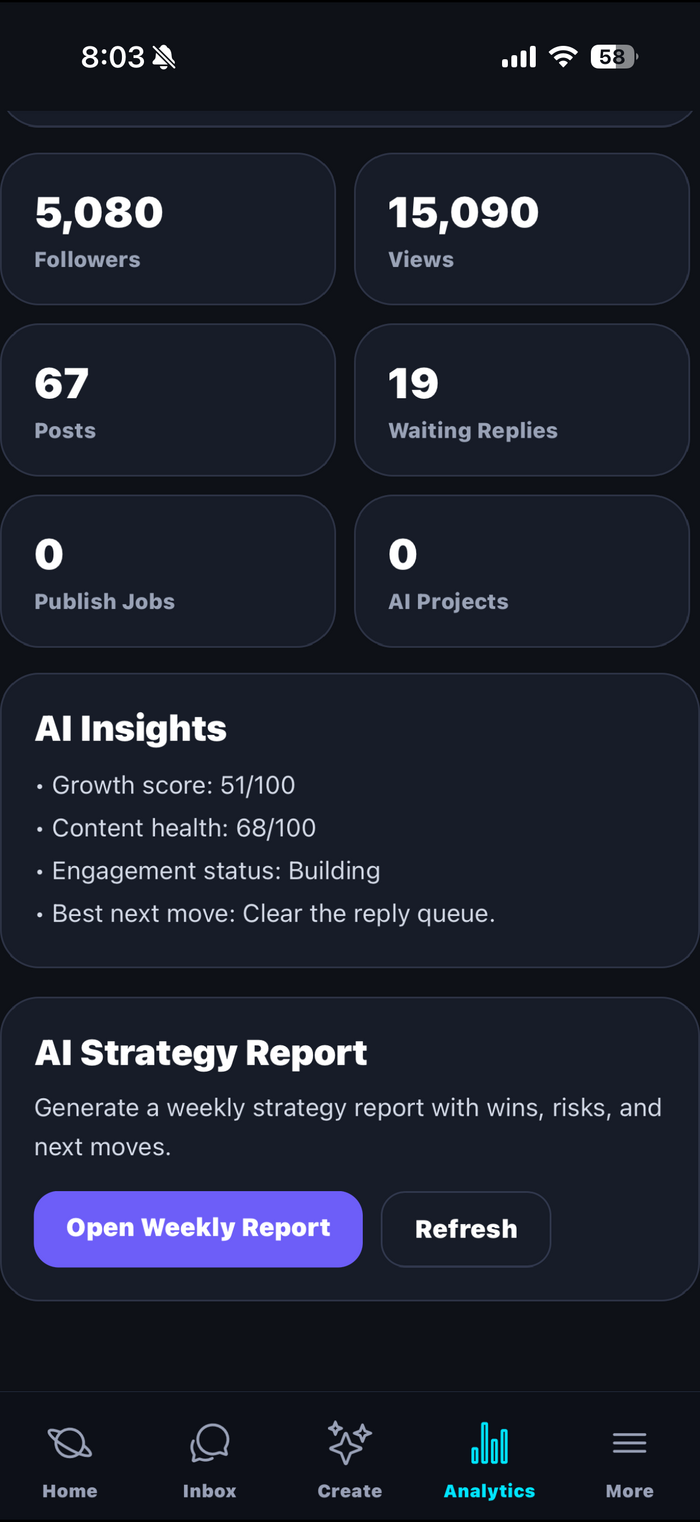
Analytics aggregates your stats across every connected platform, then explains them in plain language and recommends your next move.
- Watch your Creator Health score — one score with plain-language guidance on what's helping and what's hurting it.
- See the combined picture — followers, views, posts, and comments awaiting a reply, aggregated across every platform you've connected.
- Act on AI Insights — growth score, content health, engagement status, and a recommended next move.
- Read the AI Strategy Report weekly — an auto-generated report covering your wins, risks, and next moves. Great Monday-morning ritual.
Manage connections, actions, and your account
The Settings tab is the control room behind the control room — come here whenever you need to change what's connected or how CreatorHQ runs.
- Platforms — see every connected account, add new ones, or disconnect any of them instantly.
- Action Center — review and manage the actions CreatorHQ has queued up for you.
- Knowledge Base — manage the brand rules, FAQs, and facts your AI Copilot draws on.
- Account and subscription — your profile, plan, and billing settings, including switching plans, all in one place.